
Launching the GUI
Launch the graphical interface by double-clicking the SynapSpec application icon:
- Linux: Double-click
SynapSpecin Applications folder - macOS: Double-click
SynapSpecin Applications folder - Windows: Double-click
SynapSpec.exein the installation folder
Interface Overview
Main Window Layout
The GUI is organized with a tab-based interface:
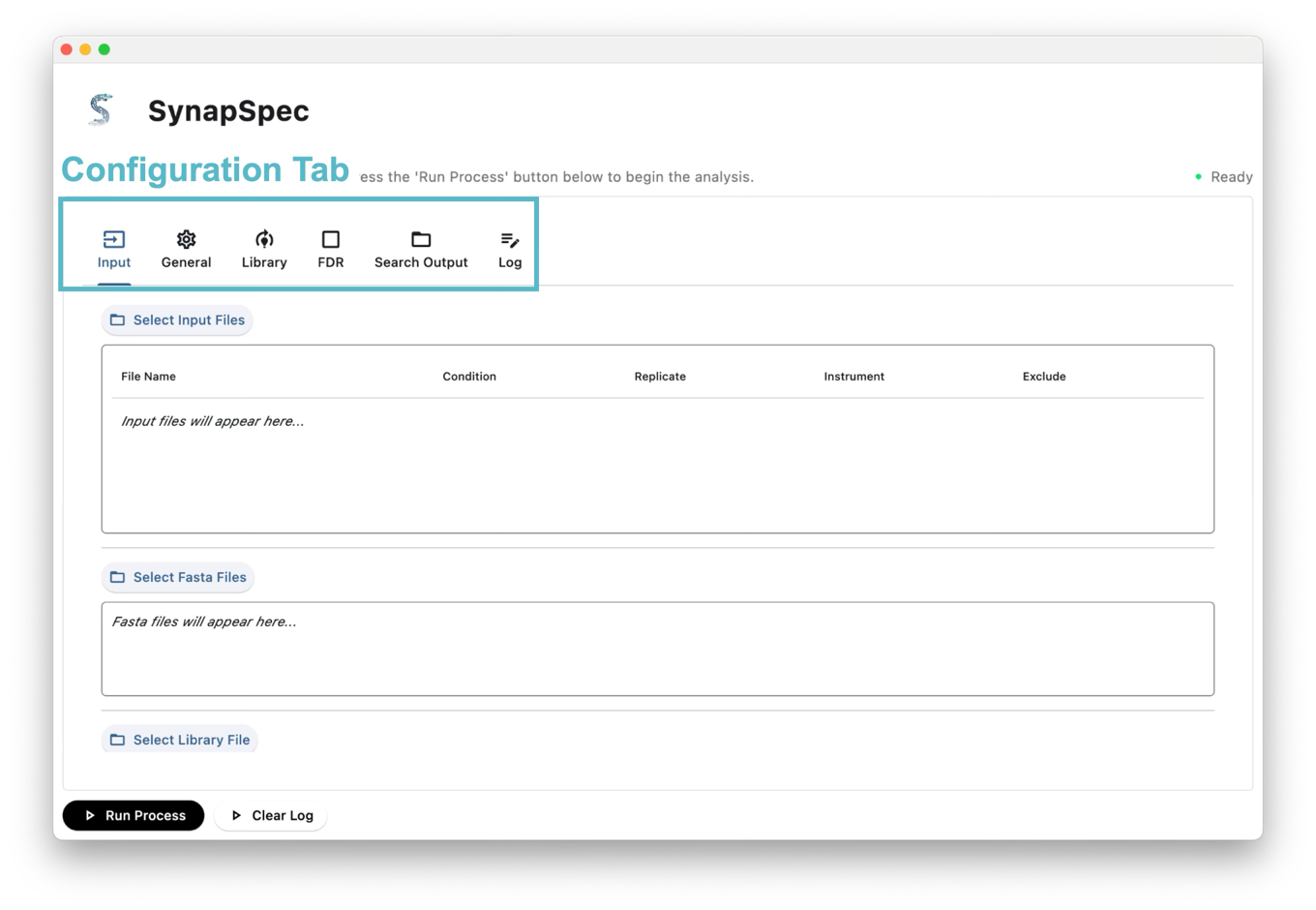
The interface is divided into three main sections:
Tab Structure
- Home: Main dashboard and overview
- Configuration: Analysis configuration with the following sub-tabs:
- Input: Configure input files (MS data, FASTA/Library) and output directory
- General: Basic configuration options
- Library: Library specific settings
- FDR: False Discovery Rate parameters
- Output: Output report related settings
- ETC: Additional features with the following tabs:
- Templates: Save, export, and import configuration presets
- Recent Runs: View analysis progress, history, and queued tasks
- Queue: Create and manage analysis queues, monitor queue progress
Configuration Indicators
- Red exclamation mark (!): Settings required for this section
- Green checkmark (✓): Settings completed for this section
Control Elements
- Run Process Button: Located at the bottom to start analysis
- Status Indicator: Located in the upper right corner, displays current process status
Loading Data
Supported File Types
- Raw Files: .raw, .mzML
- Fasta Files: .fasta
- Library Files: .tsv, .txt
- Output formats: .csv, .tsv, .parquet
Configuring Input Settings
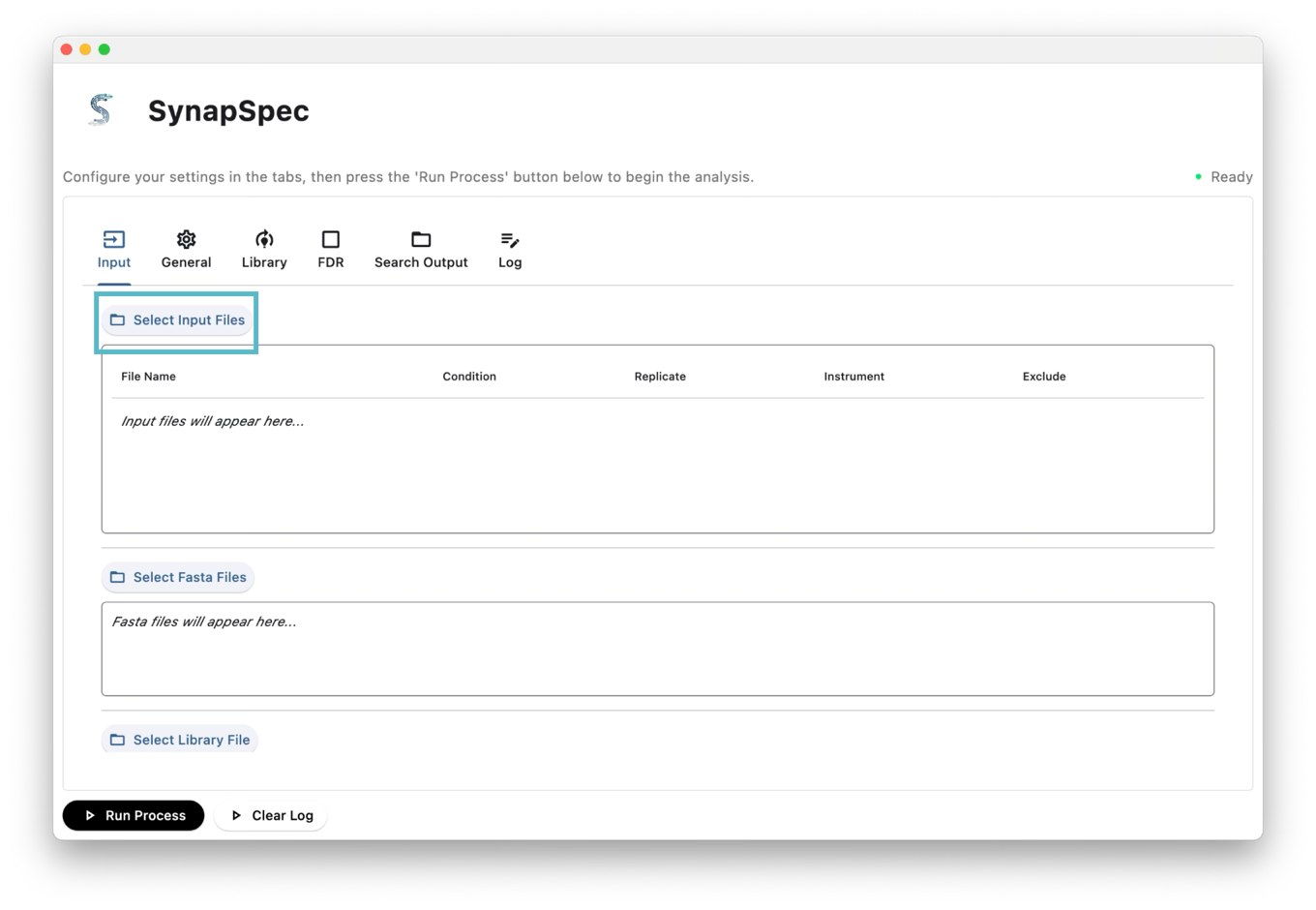
Navigate to the Input tab and configure the following:
Step 1: Input Files - Click Select Input Files to choose your mass spectrometry data (.raw or .mzML)
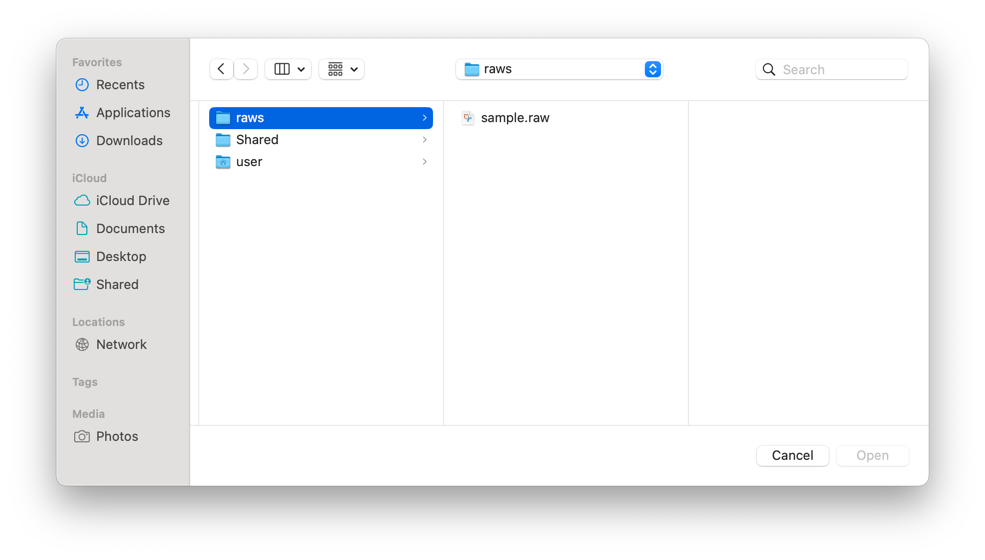
Step 2: FASTA or Library File (choose one)
- Click
Select Fasta Filesfor protein sequence database search, OR - Click
Select Library Filefor spectral library search (.tsv or .txt)
Step 3: Output Directory - Click Select Output Directory to choose where results will be saved
Step 4: Click “REVIEW & RUN”
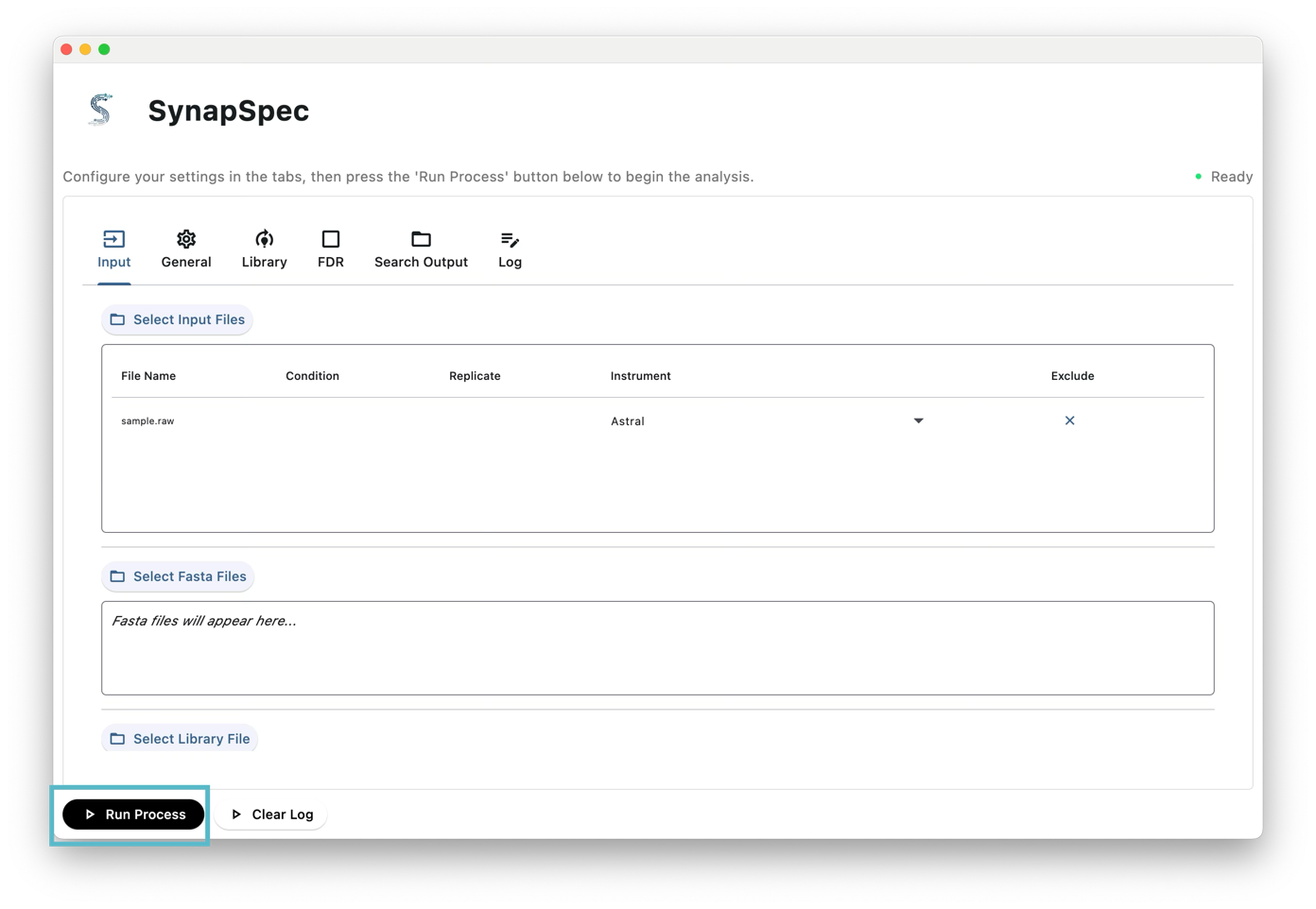
Note: If you see a red exclamation mark in the area highlighted by the blue rounded rectangle, it means the analysis is not ready to run. Ensure all required configurations are completed (indicated by green checkmarks in the Configuration tabs).
Using the Queue Feature
SynapSpec’s queue feature allows you to configure and schedule multiple analyses to run sequentially without manual intervention. Once queued, all tasks will execute automatically in order, freeing you from monitoring each individual analysis.
Accessing the Queue Tab
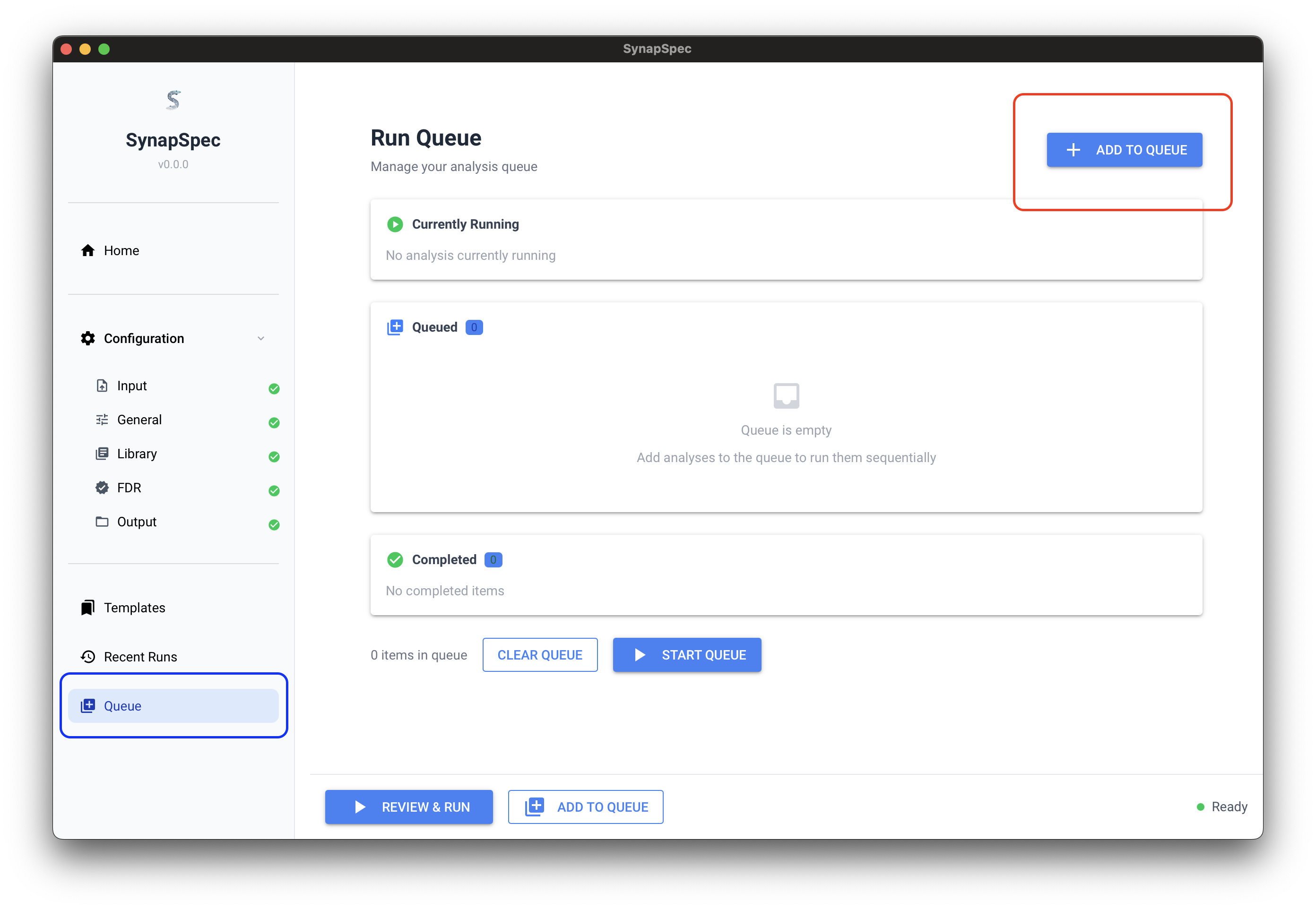
Navigate to the Queue tab (highlighted in the blue box) to access the queueing functionality. Click the ADD TO QUEUE button in the upper right corner to create a new queue entry.
Configuring a Queue Entry
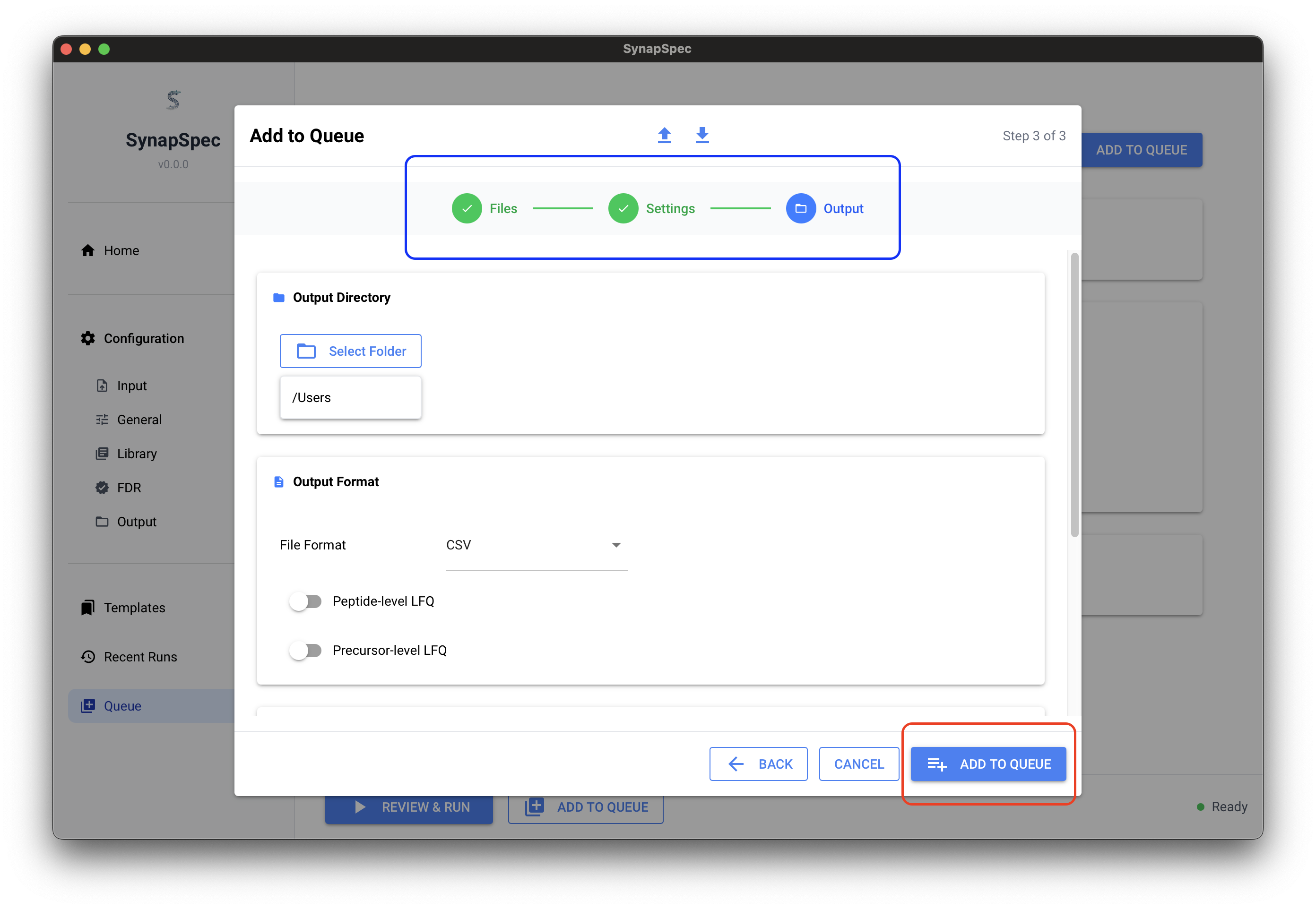
Configure the queue settings shown in the blue boxes sequentially:
- Set your desired configuration parameters
- Click ADD TO QUEUE in the lower right corner to add this configuration to the queue
Running the Queue
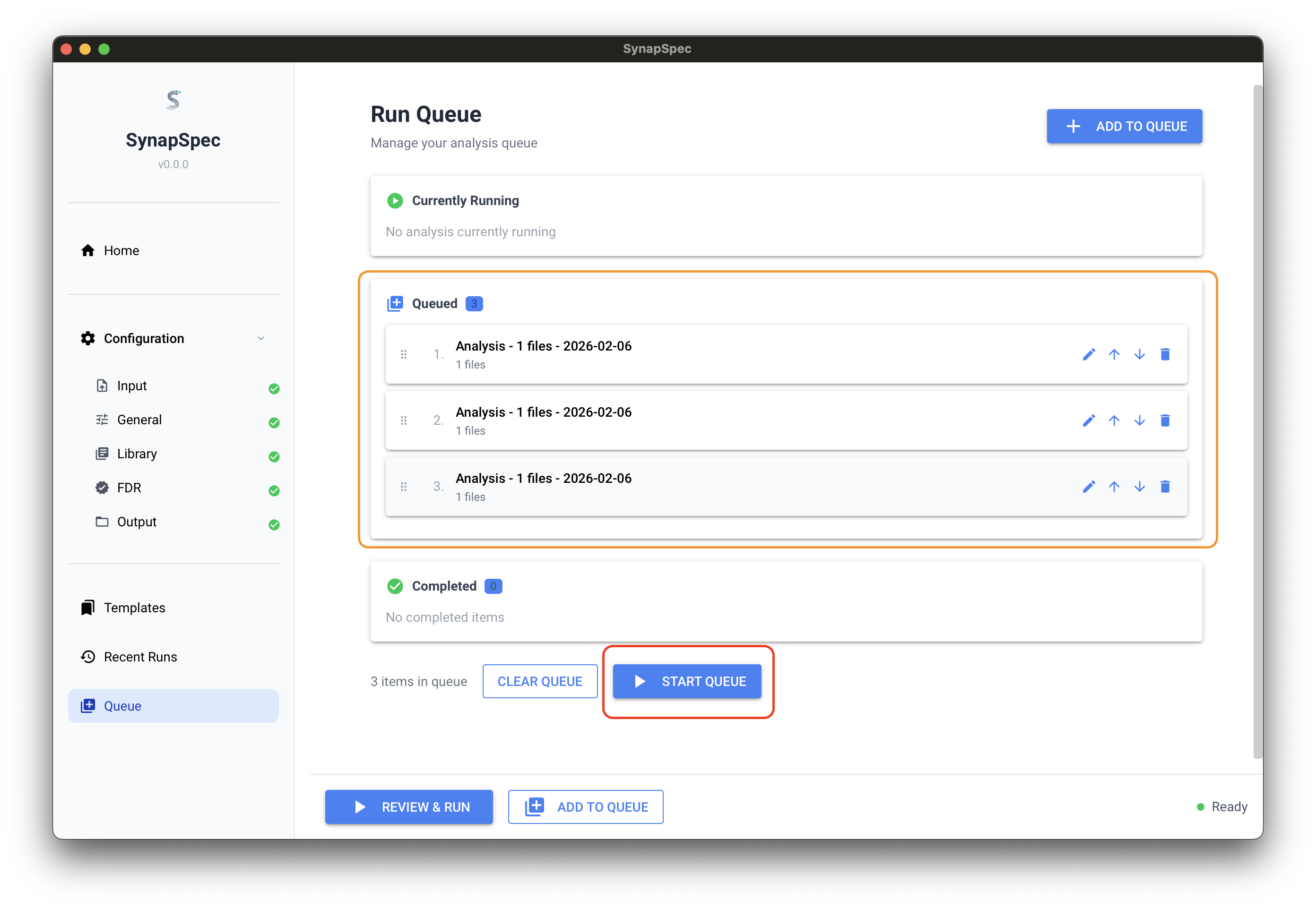
Once you have added multiple analyses to the queue (as shown in the orange box), click START QUEUE at the bottom to begin execution. All queued analysis tasks will run automatically in sequence—no need to manually start each one.
Output Results
After the analysis completes, SynapSpec generates the following output files in your specified output directory